
-
Managing Workflows
-
-
Log In
-
Go to linqapp.com/admin.
-
Enter your credentials and access the Dashboard.

-
-
Navigate to Workflows
-
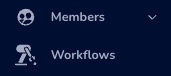
From the left menu, select Workflows.
-
Click Create New.

-
-
Configure Workflow Settings
-
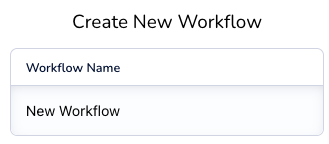
Workflow Name → Assign a clear, descriptive name.
-
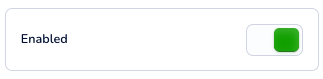
Enable → Toggle ON/OFF to activate or deactivate.
-
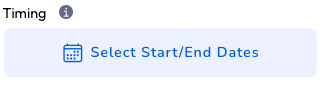
Timing → Set start/end dates or schedule conditions.
-
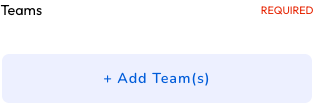
Teams → Add the team(s) who should have access.
-
-
Define Triggers & Actions
-
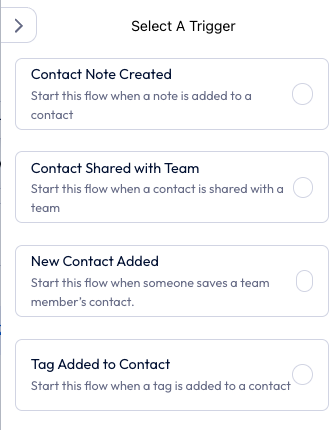
When → Choose the event that starts the workflow (e.g., new contact, tag added).
-
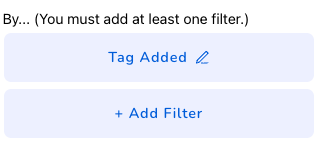
By → Define where the trigger occurs (e.g., contact, message, form).
-
Do This → Select the action(s) to perform (e.g., send SMS, assign tag, notify team).
-
-
-
Managing Tags
You can create or remove tags in two ways:
-
Through Workflows
-
Add an action within a workflow to automatically create or assign tags.
-
-
Through Contacts
-
Go to Contacts → Tags.
-
Choose Create or Remove.
-
Apply tags directly to individual or bulk contacts.
-
-