
Adding Members
To add new members to your organization:
-
Go to your Admin Dashboard.
• Log in at linqapp.com/admin. -
Select the “Members” tab.
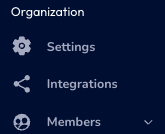
-
Click “Add Members.”

-
Fill in the member details:
-
Name-First and Last
-
Email-email used for signing in
-
Mobile Phone-the number to be used when signing in
-
Location-assign them a location in your organization
-
Title-their title in your organization
-
Profile Picture-can upload a picture
-
Team-assign them a team in your organization
-
Page Template-Will auto assign and fill out members page

-
Once added, your seat count and subscription pricing will automatically update to reflect the new member.
Removing Members
To remove a member from your organization:
-
Go to the Members tab in your Admin Dashboard.
-
Find the member you wish to remove.

-
Click Remove from Organization.
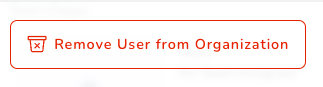
⚠️ Note: Their Linq account will remain active but will revert to a free account not attached to your organization.
Changing Member to Admin
Steps to Change a Member to Admin
- Log into your account and go to linqapp.com/welcome
- Navigate to Admin then Members in the left sidebar
- Find and select the team member you want to promote
- Locate the Role or Permissions field on their profile
- Change their role from Member to Admin
- Save your changes