
What this is
iMessage Contact Cards let you control how your sender identity appears inside iMessage threads when you’re messaging from Linq Zero numbers. This is the “contact card” that shows up at the top of a conversation (name + photo), helping recipients recognize who’s messaging them.
Why it matters
Updating your iMessage Contact Card helps you:
-
Build trust (recipients see a real name + photo instead of a generic sender)
-
Improve recognition across teams/numbers
-
Keep branding consistent when multiple people message from different lines
Where to find it
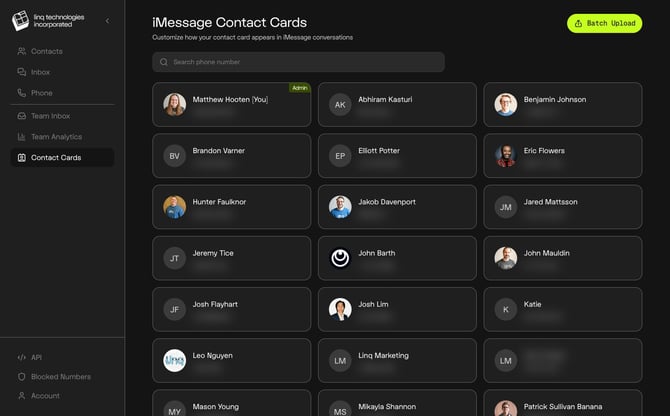
In Linq Zero, go to the Contact Cards tab (you’ll see a list of users/numbers and a Batch Upload button).
What you’ll see:
-
A searchable list of users with their associated phone numbers
-
Each user tile showing their current photo/initials + number
-
Batch Upload button (top-right) for bulk updates
How to update a single user’s contact card
-
Open Contact Cards
-
Click the user you want to update
-
In the editor:
-
Change photo (optional)
-
Update Display Name fields (First / Last)
-
Confirm you’re Uploading for the correct user + phone number
.jpeg?width=670&height=417&name=ascreenshot%20(2).jpeg)
-
-
Click Submit
-
You’ll see a message that changes are processing (updates are not always instant)
Notes:
-
The iMessage preview helps you confirm what recipients will see.
-
If you don’t add a photo, Linq will show initials by default.
How to update multiple users at once (batch upload)
Use Batch Upload when you need to apply changes across multiple users/numbers without doing them one-by-one.
General flow:
-
Click Batch Upload
-
Provide the required fields for each user/line (name fields, and any supported photo/asset requirements)
-
Submit the batch
-
Monitor completion (changes can take time to propagate)
.jpeg?width=670&height=417&name=ascreenshot%20(1).jpeg)
Tip: Batch is best for onboarding new reps, rebrands, or standardizing naming across the org.
What fields can be controlled
Depending on your configuration, you can typically set:
-
Display Name
-
First name
-
Last name
-
-
Profile image (photo)
Processing expectations
After you click Submit, you may see messaging like:
-
“Changes are being processed. We’ll notify you once your contact card is updated.”
That’s normal. Contact card updates can take time to reflect in iMessage conversations.