
Bulk Uploading contacts Via CSV
Steps
1. Go to the Contacts page

2. Tap the Import button in the top right (or Import CSV in the Admin dashboard)

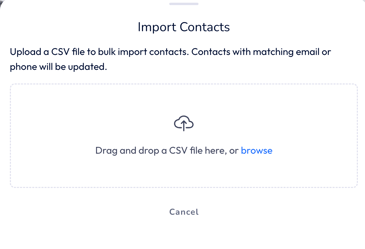
3. Drag and drop your CSV file into the upload area, or tap browse to select a file
4. Review the preview table — Linq automatically maps common column headers like First Name, Last Name,Email, Phone, Company, and Title
5. Check for any warnings (e.g., rows missing both email and phone)
6. Tap Import X Contacts to begin the import
7. A progress bar shows the upload status
8. When complete, you'll see a summary of how many contacts were imported and any errors
Supported CSV Columns
The following column headers are automatically recognized (case-insensitive):
┌────────────┬──────────────────────────────────────────────┐
│ Field │ Accepted Headers │
├────────────┼──────────────────────────────────────────────┤
│ First Name │ First Name, First, Given Name │
├────────────┼──────────────────────────────────────────────┤
│ Last Name │ Last Name, Last, Surname, Family Name │
├────────────┼──────────────────────────────────────────────┤
│ Email │ Email, Email Address, E-mail │
├────────────┼──────────────────────────────────────────────┤
│ Phone │ Phone, Phone Number, Mobile, Cell, Telephone │
├────────────┼──────────────────────────────────────────────┤
│ Company │ Company, Organization, Org │
├────────────┼──────────────────────────────────────────────┤
│ Title │ Title, Job Title, Position, Role │
├────────────┼──────────────────────────────────────────────┤
│ Location │ Location, Address, City │
└────────────┴──────────────────────────────────────────────┘
Columns that don't match a recognized header are ignored. You'll see a list of ignored columns on the preview screen.
Frequently Asked Questions
What happens if a contact already exists?
Contacts are matched by email or phone number. If a match is found, the existing contact is updated with the new data. No duplicates are created.
Is there a limit on how many contacts I can import?
There is no hard limit. Large imports are automatically split into batches and processed with a progress bar so you can track the status.
What file formats are supported?
Only CSV (.csv) files are supported.
What if some rows fail?
The results screen will show how many contacts failed and the error details. Successfully imported
contacts are not affected by failures in other rows.
Can I undo an import?
There is no bulk undo. You would need to manually delete any contacts you don't want.