
Verify Your Blue Number for Outbound Caller ID
This ensures your Linq Blue number appears when making outbound calls, while the calls still route
through LeadConnector.
Instructions:
- Log into GHL
- Navigate to: Settings → Phone Numbers → Verified Caller IDs
- Add Your Blue Number
- Click Add New Number → Add Verified ID
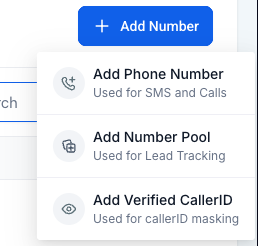
- Enter your Personal number
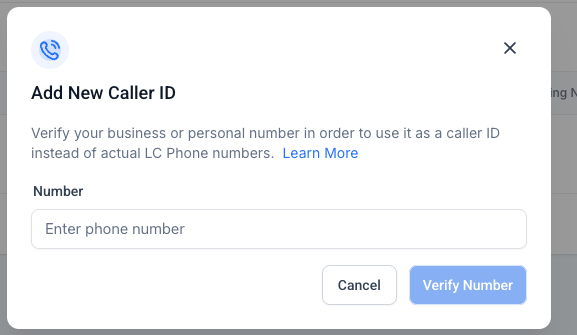
- Click Verify Number
- Answer the Verification Call
- A call will come through to your Blue number.
- Answer and enter the 6-digit verification code
- Under Caller ID, select your verified Blue number
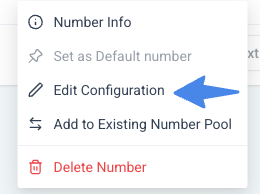
 Select Edit Configuration
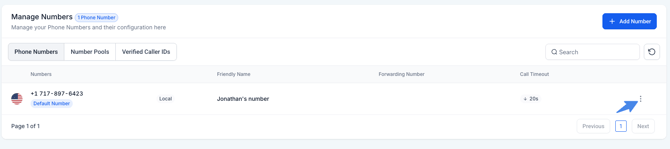
- Go to Settings → Phone Numbers
- Click the 3 dots next to your LeadConnector numberSet Your Blue Number as Caller ID
.png?width=613&height=515&name=Linq-06-24-2025_01_57_PM%20(3).png)
- Click Save
✅ Outbound calls will now display your Blue number as the caller ID
(the same number customers see in texts).