
Using the Auto Clear Browsing Data Extension with GoHighLevel + Linq
When you install the Linq JavaScript inside GoHighLevel (GHL), your browser caches that script.
For heavy GHL users, this cache can become “stale” over time, especially when GHL ships changes or we push updates to our script. That can cause:
-
The Linq dialer not loading or loading partially
-
Old UI or behavior after an update
-
Intermittent issues that go away after a hard refresh / cache clear
To keep everything fresh, we recommend using the Auto Clear Browsing Data Chrome extension to regularly clear your browser cache while using GHL.
1. What this extension does
Auto Clear Browsing Data is a Chrome extension that lets you:
-
Create automatic data-removal tasks
-
Choose what to clear:
-
Browser cache
-
Cache storage
-
Cookies
-
Download list
-
Websites’ file systems
-
Stored form data
-
Browsing history
-
IndexedDB data
-
Local storage data
-
(and related site storage options)
-
-
Run tasks:
-
Automatically when the extension is initialized/reloaded
-
Manually from the extension interface
-
-
View an event log so you can see when data was cleared
We use it to make sure GHL always loads the most recent version of the Linq JavaScript.
2. Install the extension
-
Open this link
-
Click Add to Chrome.
-
In the confirmation pop-up, click Add extension.
-
Once installed, you’ll see the extension icon in your Chrome toolbar (you may need to pin it via the puzzle-piece icon).
3. Create an automatic cache-clearing task
-
Click the Auto Clear Browsing Data icon in your Chrome toolbar.

-
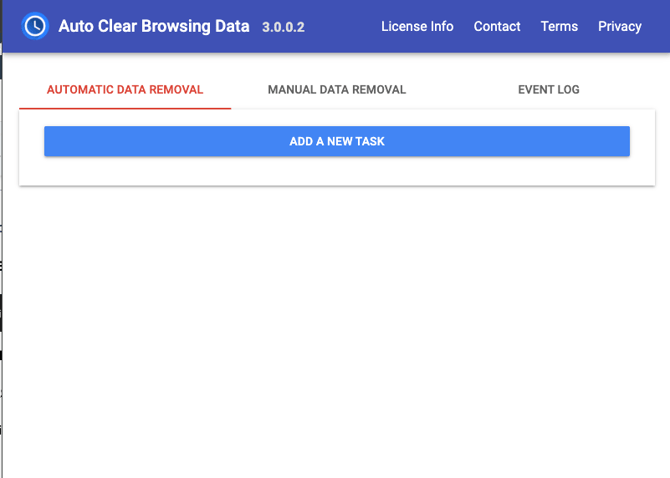
Go to the AUTOMATIC DATA REMOVAL tab.
-
Click ADD A NEW TASK.
-
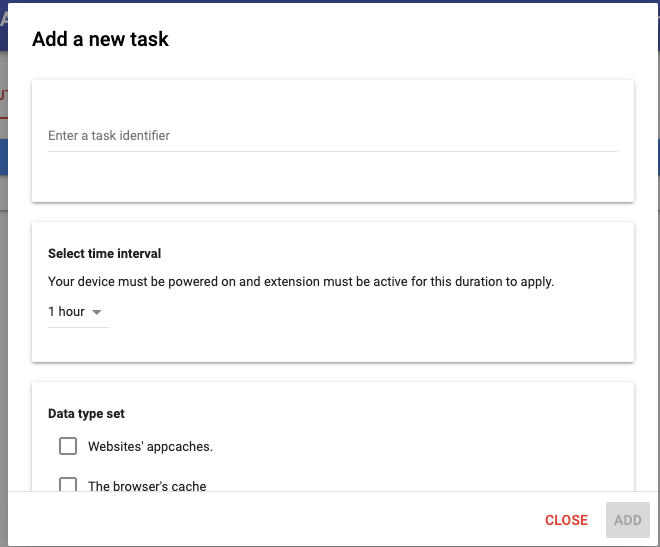
In the Data type set list, select the data you want to clear. For GHL + Linq, we recommend at minimum:
-
✅ The browser’s cache
-
✅ Cache storage
-
(Optional, more aggressive) The browser’s cookies, Websites’ local storage data, Websites’ IndexedDB data
Note: Clearing cookies/local storage will log you out of some sites. If that’s disruptive, start with cache + cache storage only.
-
-
Scroll down to the Execute task when extension is initialized or re-loaded section.
-
Check Execute when extension is initialized.
This tells Chrome to run the task automatically whenever the extension starts up (for example, when you open Chrome). That’s usually enough to keep the GHL + Linq script fresh for daily use.
-
Click ADD to save the task.
From now on, your selected data types will be cleared automatically when the extension initializes.
4. Run a manual clear (on demand)
If you ever see the Linq dialer or UI behaving strangely in GHL, you can trigger a manual clear:
-
Open the Auto Clear Browsing Data extension.
-
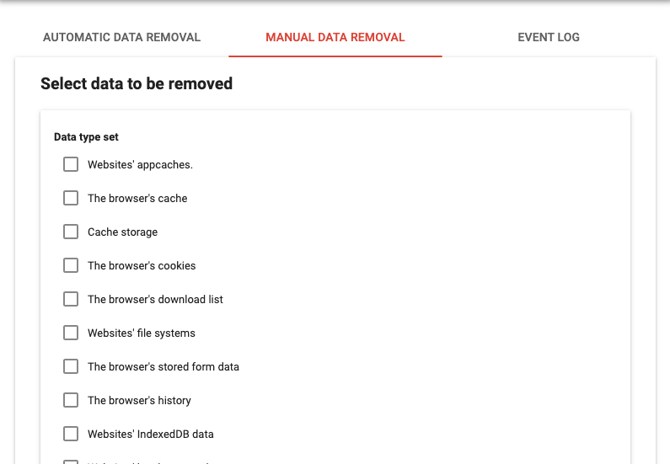
Go to MANUAL DATA REMOVAL.
-
Choose the same data types you selected for your automatic task (e.g., cache + cache storage).
-
Click the button to clear data now.
-
Close and re-open your GHL tab, then reload the page.
This gives you a quick “hard refresh” without digging through Chrome’s native settings.
5. Recommended use cases
We recommend installing and using this extension if:
-
You use GoHighLevel heavily with the Linq JavaScript/dialer installed.
-
You’ve seen issues resolve temporarily after clearing cache or doing a hard refresh.
-
You want a simple, repeatable way to keep your Linq JS up to date while GHL is still making frequent changes on their side.
The extension does not change how Linq or GHL work; it simply helps your browser stop serving older, cached versions of code so you always get the latest version.