
What Are Workflows in GoHighLevel?
Workflows in GoHighLevel (GHL) are automations that help you send messages, assign leads, trigger follow-ups, and automate communication without manual work.
When connected with Linq Blue, workflows can send native iMessages directly from your Linq Blue number inside GHL.
This allows teams to create more personal, conversational automations instead of traditional SMS blasts.
Before You Start
Make sure you have:
- An active Linq Blue subscription
- Your GoHighLevel integration connected
- Linq actions installed inside GHL
- A connected sub-account
- Smart Number Assignment enabled (recommended)
How to Create a Workflow
Step 1 — Open Workflows
Inside GHL:
Automation → Workflows → Create Workflow
You can:
- Start from scratch
- Use a Linq Snapshot
- Duplicate an existing workflow
Step 2 — Add a Trigger
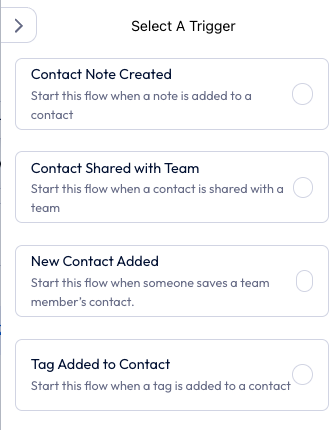
A trigger tells the workflow when to start.
Common triggers include:
| Trigger | Example |
|---|---|
| Contact Created | New lead enters CRM |
| Form Submitted | Facebook or website form |
| Contact Tag Added | “Buyer” or “Hot Lead” tag |
| Appointment Booked | Follow-up reminders |
| Customer Replied | Stops or changes automation |
Example:
“When a lead submits a form → send an iMessage automatically.”
Sending iMessages with Linq Blue
Step 3 — Add a “Send iMessage” Action
Inside the workflow:
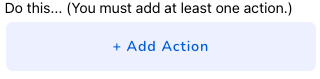
Add Action → Apps → Linq → Send iMessage
This sends a native iMessage from your Linq Blue number instead of regular SMS.
Best practices:
- Keep messages short
- Sound conversational
- Avoid links in the first message
- End with a question to encourage replies
Example
Hey John! This is Sarah from Apex Roofing.
Are you still looking for help with your estimate this week?
Helpful Linq Workflow Actions
Share Contact
Action:
Apps → Linq → Share Contact
This sends your contact card directly into the recipient’s phone so your business appears branded inside iMessage.
⚠️ Important:
“Share Contact” cannot be the first step in a workflow. It must come after a Send iMessage action.
Wait for Reply
The “Wait for Reply” action pauses the workflow until the contact responds.
This helps:
- Prevent over-messaging
- Improve engagement
- Keep conversations natural
Example flow:
- Send iMessage
- Wait for Reply
- If no response after 24 hours → send follow-up
Example Basic Workflow
Simple Lead Follow-Up Workflow
Trigger
Form Submitted
Actions
- Send iMessage
- Wait 1 Day
- Send Follow-Up Message
- Share Contact Card
Example
Message #1:
Hey ! Thanks for reaching out.
What questions can I help answer for you?
Follow-Up:
Just checking back in — still interested in chatting this week?
Workflow Tips
Keep Messages Human
Linq Blue performs best with conversational messaging.
Avoid:
- Long paragraphs
- Mass-marketing language
- Aggressive follow-ups
- Sending too many messages too quickly
Use Delays Between Messages
Space messages naturally.
Recommended:
- 24+ hours between follow-ups
- 2–3 follow-ups maximum without a response
Monitor Performance
Inside GHL → Linq → Phone Analytics, you can track:
- Response rate
- New conversations
- Message volume
- Line health
Healthy reply rates help protect your number and improve deliverability.
Summary
GHL workflows with Linq Blue allow you to:
- Automate iMessage conversations
- Send contact cards
- Create personalized follow-ups
- Improve response rates
- Scale communication while keeping it human
The most effective workflows feel like real conversations — not campaigns.