
GHL Workflows SOP
What is it?
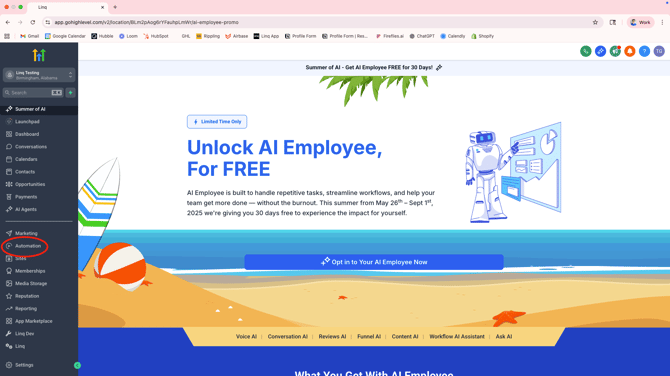
- Workflows are automations in GHL. Companies use these to automate internal processes and outbound responses to customers.
Why it Matters
Most customers are using Linq Blue to integrate with their workflows
- A well-optimized Linq Blue workflow should:
- Increase Response Rate
- Improve show rate, conversion, etc.
- Set them apart from competition
- Illuminate activation moment
- Grow customer affinity and revenue
- Correctly follows time settings
- All with a hands-off, automatic approach
Terms to Know
Triggers
- The event or condition that starts a workflow. (“When this happens, do this”)
- A workflow can have one or multiple triggers.
- Watch for events in real time or based on scheduled conditions.
- Once the condition is met, the contact (or lead, opportunity, etc.) enters the workflow.
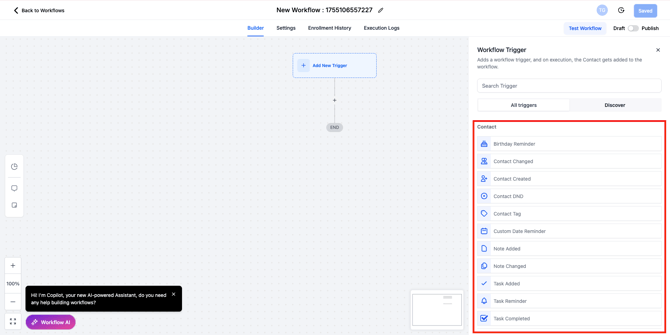
- Most common
- Contact Created
- New contact added to GHL
- Could be from form fill, Linq App, manual, etc.
- New contact added to GHL
- Contact Created
-
- Contact Tag
- Categorize contact types
- Real Estate example
- Buyer
- Seller
- 500k+
- 300k+
- Real Estate example
- Categorize contact types
- Contact Card
- Helps with identifying the sender
- Form Submitted
- TikTok
- Contact Tag
Action
- What the workflow does once it has been triggered. (“When this happens, do this”)
- Execute in the order you set them.
- Unlimited actions in a workflow.
- Can communicate with the contact, update data, or interact with other systems.
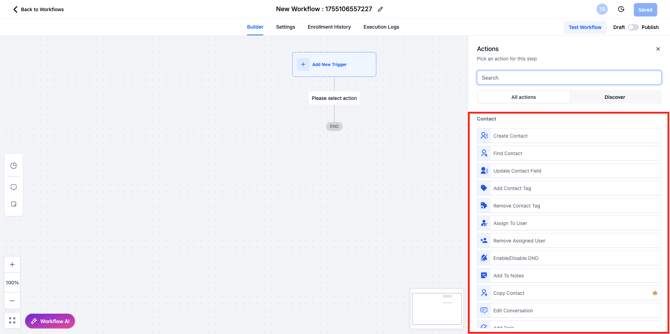
- Most common
- Add contact tag
- Automatically adds tag to contact
- Ex. Form fill on Facebook ad targeted towards people wanting to sell their home
- Automatically tags as “Seller”
- Ex. Form fill on Facebook ad targeted towards people wanting to sell their home
- Automatically adds tag to contact
- Assign to user
- Ex. Enters into salesperson’s queue
- Send SMS
- Uses LeadConnector number to send SMS
- Send Internal Notification
- Ex. Notify salesperson a new lead has entered the pipeline
- Add contact Card
- Receiver obtains the contact card of the sender for easy identification when calling/texting.
- If / Else
- Ex. “If recipient replies ‘Yes,’ send Message A,” “If recipient replies ‘No,’ send Message B”
- Wait
- Ex. wait 30 minutes before Send SMS #2
- Add contact tag
Use Cases
Default Messaging Provider
- If Linq Blue is set as the primary provider:
- All outbound messages with automatically be Linq Blue (even if it says SMS)
- Don’t have to change workflows or select “iMessage” when sending manual texts
- Turnkey for Workflows
- Client doesn’t have to learn new processes or actions
- Cannot use SMS anymore unless they change Linq Blue back to secondary provider
- If Linq Blue is set as secondary provider
- Will have to use our custom actions to send messages with Linq Blue number
- Will still be able to use SMS number
- Have to ensure all messages (workflows and manual) follow best practices
- Can create fringe cases
Our Actions
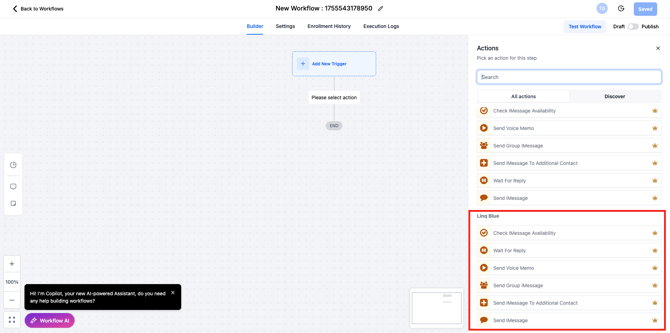
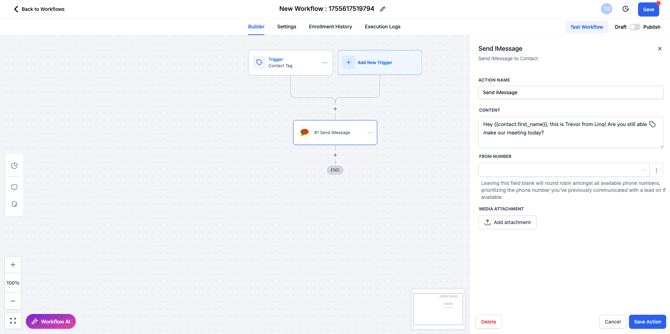
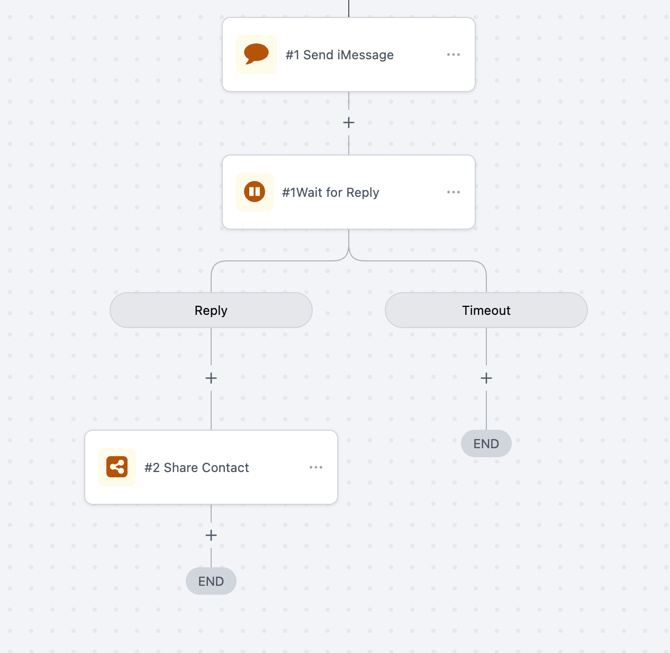
- Send iMessage
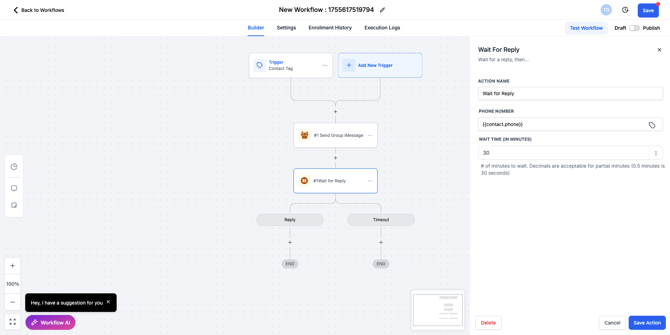
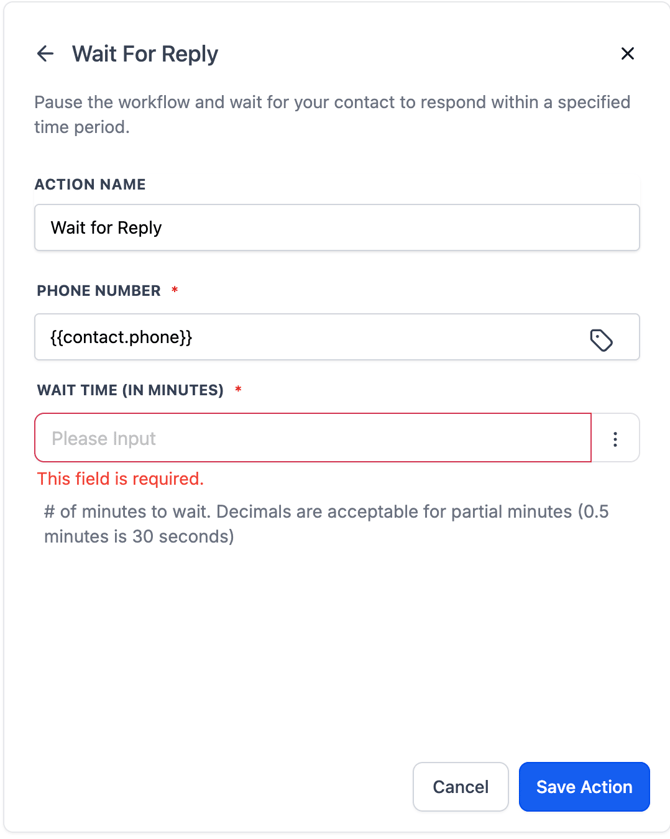
- Wait for reply
- Will not send a new message until a reply is sent from number
- Helpful for following workflow time settings
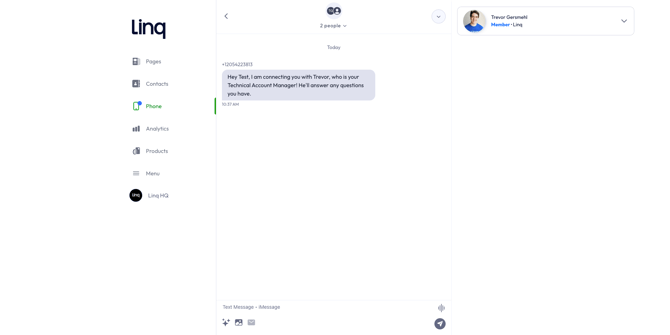
- Send Group iMessage
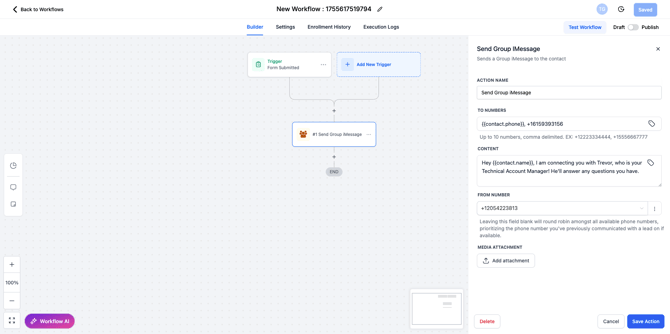
- How group message looks in Linq App
- Share Contact
-
- Sends a contact card
-
- Check iMessage Availability
- 50+ new conversations per day limit
%20(2).png?width=670&height=540&name=image%20(1)%20(2).png)
Handling Replies in Workflows with Linq Blue
“Stop on response” and Linq Blue
When you use Linq Blue iMessage actions inside a workflow, the built-in Stop on response setting in the workflow does not apply to those actions.
.png?width=670&height=434&name=image%20(31).png)
That means:
-
A contact can reply to a Linq Blue message and the workflow will keep running.
-
Any future actions in the cadence (additional Blue messages, emails, tasks, etc.) will still execute unless you explicitly remove the contact from the workflow.
If you want a workflow to stop as soon as a contact replies to a Linq Blue message, you’ll need to add your own stop logic.
Recommended pattern: Remove from workflow on reply
To stop a Linq Blue cadence when someone responds:
-
Add a reply trigger
-
In your workflow, add a step that triggers when the contact replies
(e.g. a “Contact replied” / “Customer replied” condition, depending on your CRM).
-
-
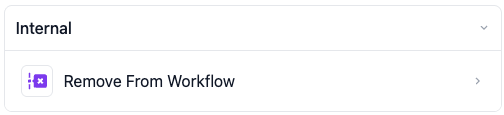
Use the “Remove From Workflow” action
-
Under Internal actions, select Remove From Workflow.
-
Place this action immediately after your reply condition so that as soon as the contact responds, they are removed from the workflow.
-
-
Confirm behavior
-
Test with a sample contact:
-
Enroll the contact in the workflow.
-
Let the first Linq Blue message send.
-
Reply to that message from the contact’s phone.
-
Verify in the workflow’s Enrollment / Execution logs that the Remove From Workflow action runs and no further steps are executed.
-
-
When to use this pattern
Use the reply + Remove From Workflow pattern whenever:
-
You’re running a Linq Blue iMessage cadence (multiple texts in a sequence).
-
You want any reply to stop further automated messages.
-
You previously relied on Stop on response and noticed contacts still receiving follow-up iMessages.
This ensures that once a contact is actively engaging in a conversation, they are no longer pushed through automated Blue messaging in that workflow.