
How to Use the Video Embed Feature on Your Linq Page
The Video Embed feature lets you add YouTube or Vimeo videos directly to your Linq page—perfect for showcasing products, listings, events, testimonials, or promos.
Before You Start
You’ll need the URL of the video you want to embed.
-
Open your video on YouTube or Vimeo.
-
Either:
-
Copy the URL from your browser’s address bar, or
-
Click the Share button on the video and copy the link provided.
-
-
Keep this link handy—you’ll paste it into Linq in a moment.
Add a Video Embed to Your Linq Page
You can do this from either the Linq mobile app or on desktop.
-
Log in to your Linq account
-
In the app, open Linq
-
On desktop, go to linqapp.com/welcome
-
-
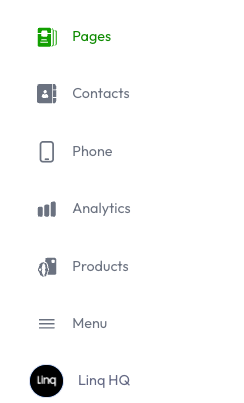
Go to your Pages section.
-
Click or tap Add Content.

-
Select Video Embed from the list.

-
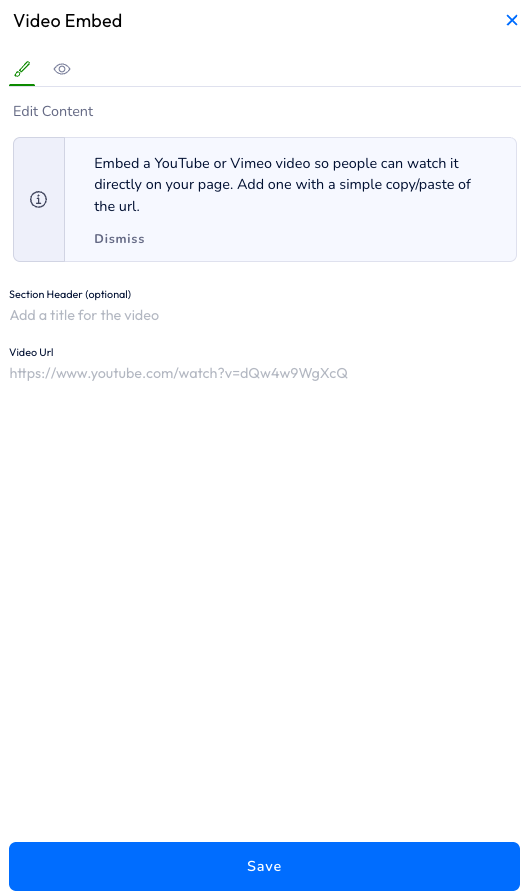
In the Video Embed editor:
-
Section Header (optional)
-
Add a title for this section on your page (e.g., “Property Tour,” “About Us,” “Demo Video”).
-
You can leave this blank if you prefer.
-
-
Video URL
-
Paste the YouTube or Vimeo link into the URL field.
-
If the URL is pasted in the wrong field, the video may not display correctly.
-
-
-
Click or tap Save.
Where Your Video Appears & How to Reorder It
-
After saving, the video section will appear at the bottom of your Linq page as the most recent addition.
-
To move it:
-
Go back to your Linq page.
-
Click or tap the Sort button at the top.
-
Drag and drop your content sections into the order you want.
-
Save your changes.
-
Your embedded video is now live and ready for visitors to watch directly on your Linq page.