
How to Use the Expandable Text Tile on Your Linq Page
The Expandable Text tile is a flexible text area you can customize to share any information you want visitors to see. Unlike a simple text block, it lets you show a short header and then expand to reveal more details.
It’s especially useful for:
-
FAQs
-
Written directions to your business
-
Office hours or holiday schedules
-
Sales, promos, or time-sensitive updates
-
Policies, instructions, or details that would otherwise clutter your page
Add an Expandable Text Section
You can set this up from the Linq mobile app or from your computer.
-
Log in
-
Open the Linq app, or
-
Go to linqapp.com/welcome on your computer and sign in.
-
-
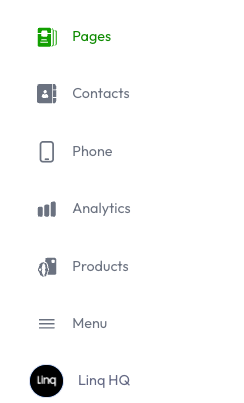
Go to your Pages section.
-
Click or tap Add Content.

-
Select Expandable Text from the content list.

Configure Your Expandable Text
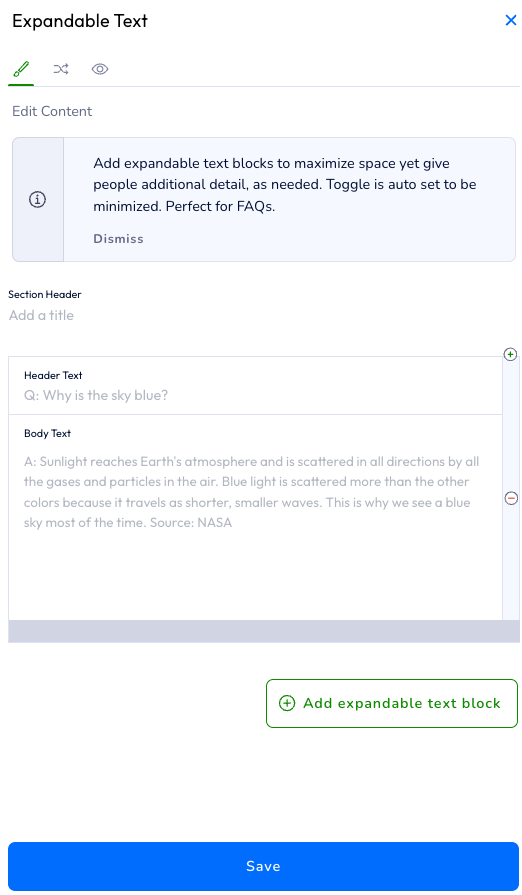
In the Expandable Text editor, you’ll see a few fields:
-
Section Header (optional)
-
This is the title of the entire section on your page (e.g., “FAQs,” “Store Info,” “Office Hours”).
-
It helps visually separate this content from the rest of your page.
-
-
Header Text
-
This is the title for a single expandable item inside the section.
-
Examples: “Where are you located?”, “Return Policy,” “Weekend Hours.”
-
-
Body Text
-
This is the detailed information that appears when someone expands the header.
-
Add your directions, answer, policy, or any details related to the Header Text.
-
Add Multiple Expandable Text Blocks
If you want more than one FAQ or detail block in the same section:
-
Fill out Header Text and Body Text for your first item.
-
Click the green + Add Expandable Text Block button.
-
Add Header Text and Body Text for each additional item.
-
Repeat as needed.
All blocks will appear grouped under the same Section Header on your page.
Save & Reorder
-
When you’re finished, click Save.
-
The Expandable Text tile will appear at the bottom of your Linq page as the newest section.
-
-
To move it:
-
Go back to your page.
-
Click or tap Sort at the top.
-
Drag and drop your content sections into your preferred order.
-
Save your changes.
-
Your Expandable Text section is now live and ready for your visitors to tap and expand for more information.