
Using the Ambassador Link on Your Linq Page
If you’re a Linq Ambassador, you can add your referral link directly to your Linq page so visitors can order products with your discount and generate commissions for you.
Add the Ambassador Link to Your Page
-
Open the Linq app and go to the Pages tab (second icon from the left on the bottom navigation bar).

-
Tap Add Content.
-
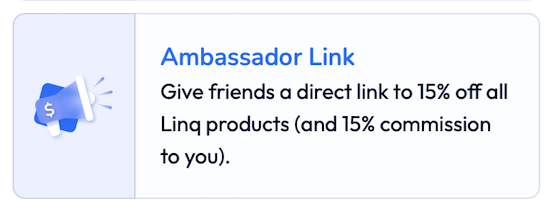
Scroll down and select Ambassador Link.
-
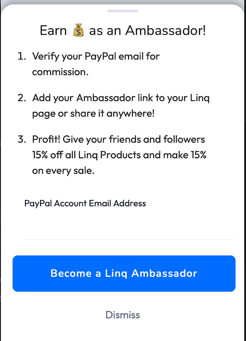
Enter your PayPal email address:
-
If you don’t already have a Linq Ambassador account with this email, we’ll create one when you tap Become an Ambassador.
-
If you already have an Ambassador account with this email, tapping Become an Ambassador will connect your existing account and referral link.
-
-
After that, the Edit window will appear. Customize the Section Header (for example, “Get Your Linq Products” or “Shop with My Discount”).
-
Tap Save to add the Ambassador section to your page.
Your visitors can now click this link to purchase Linq products using your referral and discount.
Access Your Ambassador Dashboard
You can view your referrals and commissions anytime:
-
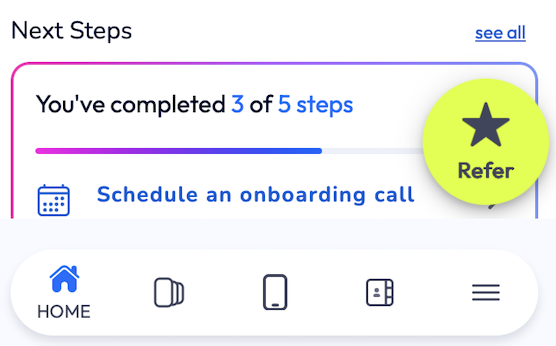
Go to the Menu tab (bottom right icon in the app).
-
Tap Ambassador Settings(star).
You can also reach the same settings from your page by tapping the options above your Ambassador Link section.