Spotify Player Content Tile
You can embed a Spotify player on your Linq page so visitors can listen to music, albums, or podcasts without leaving your page.
Before You Start
You’ll need the Spotify URL for the content you want to embed:
-
A full album link, or
-
A single song or podcast episode link
You’ll paste this URL into the Spotify Player settings in Linq.
How to Get Your Spotify Link
You can use Spotify on the web or in the app.
A. Get a Full Album Link
-
Open Spotify (web or app).
-
Go to the Album you want to feature.
-
Click the three dots (⋯) near the album title/controls (next to Play/Download/Shuffle).
-
Hover over Share.
-
Click Copy Album Link.
B. Get a Single Song or Podcast Link
-
Open Spotify and go to the song or podcast episode.
-
Hover over the track/episode and click the three dots (⋯) on the far right.
-
Hover over Share.
-
Click Copy Song Link or Copy Episode Link.
How to Add the Spotify Player to Your Linq Page
-
Open your page
-
In the Linq app, go to the Pages tab.

-
-
Tap Add Content
-
At the top of your page, tap Add Content.
-
-
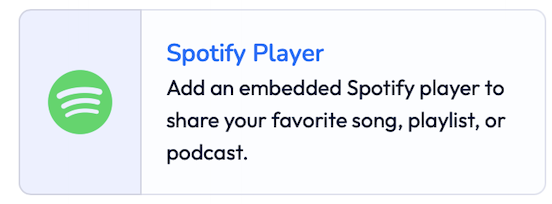
Select Spotify Player
-
Scroll through the content options and tap Spotify Player.
-
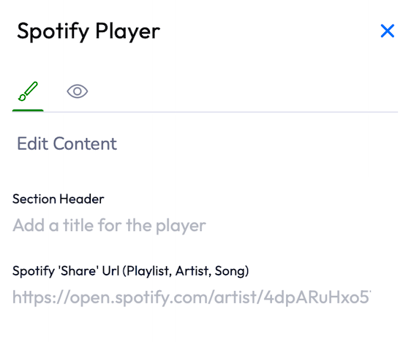
The Spotify Player edit window will open.
-
-
Set your section title
- In Section Header, enter a title for this section (e.g., Now Playing, My Playlist, Featured Podcast).
-
Paste your Spotify Share URL
-
In the Spotify "Share" URL field, paste the album/song/podcast link you copied from Spotify.
-
-
-
Save your changes
-
Tap Save.
-
The Spotify Player will be added to the bottom of your page as the most recent content tile.
-
You can reorder it anytime using the Sort button at the top of your Pages screen.
-