
Customizing Your Contact Exchange Form
Your Exchange Form powers the Exchange Contact button on your Linq page.
You can turn this setting on or off and fully customize the questions people fill out when they share their info with you.
Turn Contact Exchange On or Off
-
Open the Linq app and go to the Pages tab.

-
Make sure you’re on the correct page (if you have multiple pages).
-
Tap the three dots (⋯) at the top of the page.

-
Tap Edit Page Settings.
-
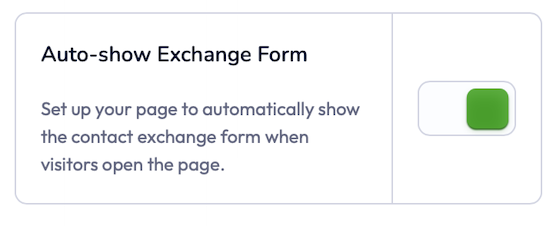
Scroll down to Contact Exchange Preference and toggle:
How to Customize Your Exchange Form
-
Log in to your Linq account
-
On the app or via the web at linqapp.com/welcome.
-
Your primary page will appear first—switch pages if needed.
-
-
Open Page Settings
-
Confirm you’re viewing the correct page.
-
Tap the three dots (⋯) at the top.
-
Select Edit Page Settings.
-
-
Open Customize Exchange Form
-
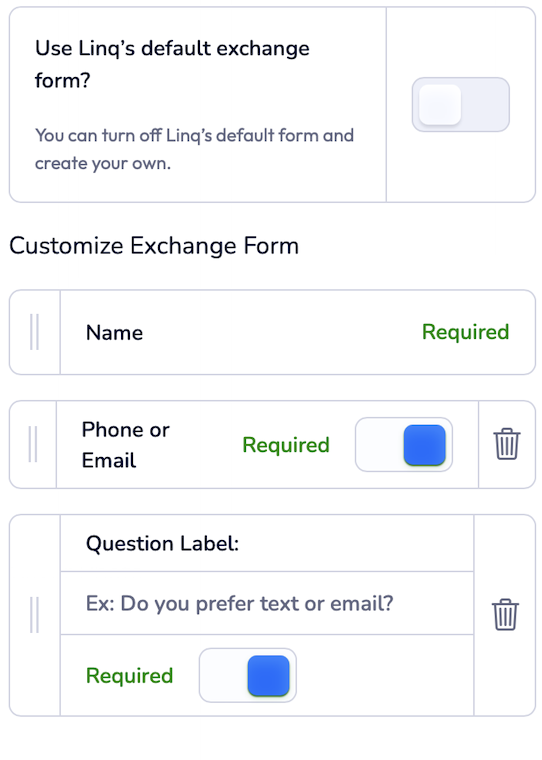
Scroll to the bottom and tap Customize Exchange Form.
-
You’ll see the default questions that appear on your form.
-
-
Add or Edit Fields
-
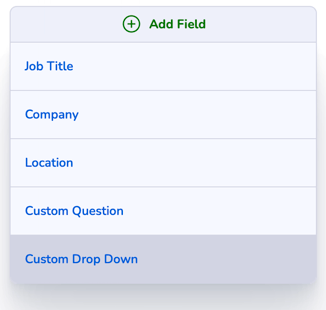
Tap + Add Field to see available options.
-
You can add:
-
Job Title
-
Company
-
Location
-
Custom Question
-
Custom Drop Down Question
-
-
Edit or reorder fields as needed to match your workflow.
-
-
Save Your Changes
-
When you’re finished, tap Save in the top-right corner.
-