
How to Sort Content Pieces Within a Content Tile
Some content types on your Linq page let you add multiple items inside a single tile—for example:
-
Links (multiple buttons/links in one Links section)
-
Expandable Text (multiple FAQ-style questions/answers)
-
Photos (multiple images in one gallery)
-
And other similar multi-item tiles
Each individual item inside those tiles is a content piece. When a tile supports sorting, you’ll see a Sort button at the top of that tile’s edit view.
Sort Content Pieces Inside a Tile
-
Open the Pages tab
-
In the Linq app, go to Pages and open the page you want to edit.
-
-
Edit the content tile
-
Find the tile you want to sort (e.g., Links, Expandable Text, Photos).
-
Tap or click Edit above that tile.
-
-
Click the Sort button
-
At the top of the edit screen, tap Sort.

-
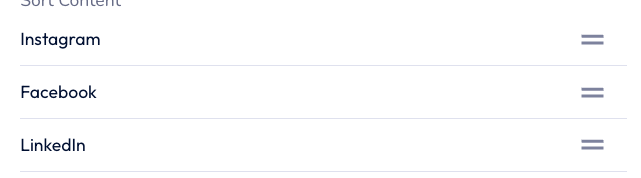
You’ll now see a list of all the content pieces inside that tile in their current order.
-
-
Drag to reorder
-
Press and hold on a content piece, then drag it up or down to change its position.
-
Repeat for any other items you want to rearrange.
-
-
Save your changes
-
When you’re happy with the order, tap Save.
-
The tile on your page will now display those content pieces in the new order.
-
This lets you control the exact sequence of links, FAQs, photos, and other items inside a multi-piece content tile—without having to delete and recreate anything.