
What Happens After You Share Your Linq Page?
You’ve just shared your Linq page via QR code, NFC product, or direct URL—nice work! 🎉
The person you’re connecting with is now viewing your Linq page on their phone.
-
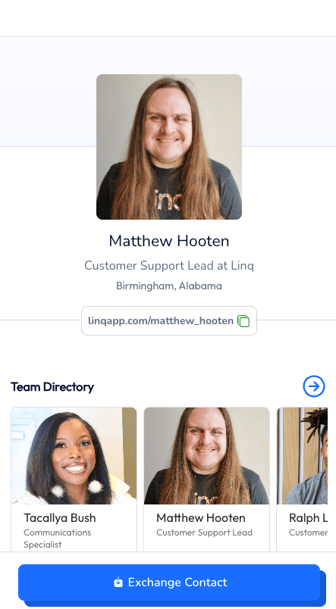
If they have the Linq app, your page opens in the app.
-
If they don’t have the app, your page opens in their mobile browser.
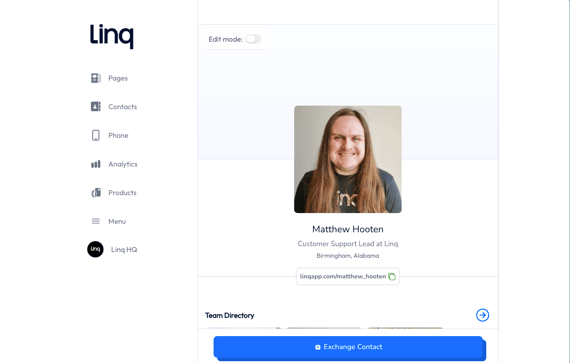
The person you’re sharing with does not need the Linq app to:
Scan your product
View your Linq page
Download your contact info
What They See on Your Page
-
They land on your Linq page, where they can see:
-
Your profile photo and details
-
All the content tiles you’ve added (links, videos, documents, booking buttons, etc.)
-
The Exchange Contact or Save Contact button at the bottom (depending on your settings)
-
How They Share Their Info Back to You
If you want to collect their information:
-
Ask them to tap Exchange Contact (or Save Contact, depending on your page setup).

-
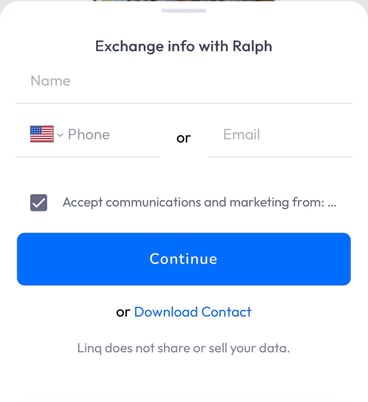
They’ll see your Exchange Form:
-
They can fill in their name, email, phone number, and any other fields you’ve added.
-
-
After submitting the form, they’ll be prompted to download your contact to their phone.
This way, both of you walk away with each other’s information.
How They Can Interact With Your Page
After that, they’re free to explore your page:
-
Tap links to websites, socials, or landing pages
-
View photos and videos you’ve added
-
Download documents (brochures, resumes, menus, one-pagers, etc.)
-
Book time with you if you’ve added a scheduling link
-
Revisit your page later using the link in your saved contact
The contact card they download includes a link back to your Linq page, so they can return anytime.
What You Can Do After They Connect
Once they’ve exchanged and saved their info and they appear in your Linq contacts, you can:
-
View them in your Linq contacts
-
Set follow-up reminders or tasks (if enabled in your workspace)
-
Email or text them directly from their contact in Linq
-
Use your Snippets library to send:
-
Pre-made text messages
-
Pre-written follow-up emails
-
Typical flow on your side:
-
Open the Contacts section in Linq.
-
Tap the contact you just met.
-
Tap Email or Text.
-
Choose a Snippet or type a custom follow-up and send.
This turns every tap/scan into a trackable connection with a clear next step—no manual data entry, no lost business cards.