
How Do I Use the Linq Card?*
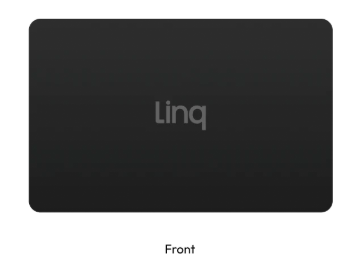
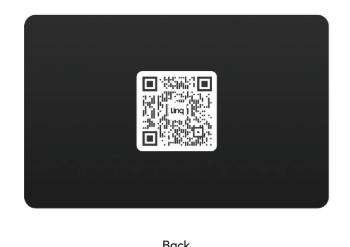
The Linq Card is a wallet-friendly, NFC-enabled card that lets you share your Linq page with a tap or QR scan. Once it’s activated and tied to your page, it becomes a fast, professional way to connect with anyone you meet.*
1. Set Up Your Linq Account and Page
Before using your card, make sure you have:
-
A Linq account
-
A Linq page set up the way you want
On your Linq page, you can add:
-
Contact information (phone, email, job title, company)
-
Social links and website URLs
-
Photos, videos, and documents
-
Buttons, booking links, and other content
Get your page to a “share-ready” state first—this is what people will see when they tap or scan your card.
2. Activate Your Linq Card
Linq Cards arrive unactivated, so they need to be tied to your account.
-
Open the Linq app.
-
Go to Products → Activate Product.
-
Follow the activation steps:
-
Use your NFC reader to tap the card or
-
Scan the QR code printed on the card (if present).
-
-
Assign the card to the page you want it to open.
Once activated:
-
The card will stay tied to that page
-
You can change which page it’s associated with later in the Products area
-
You can also deactivate it if you need to move it to another account
3. Sharing Your Linq Page with the Card
You can share your Linq page in two ways:
A. Tap (NFC)
-
Ask the other person to unlock their phone.
-
Hold your Linq Card up to their phone’s NFC reader:
-
iPhone: typically at the top of the phone
-
Android: usually on the back (often around the center, but it varies by model)
-
-
When their phone detects the card, they’ll see a notification.
-
They tap it, and your Linq page opens in their browser.
Even though the card has a wide NFC field, you’ll still get the best result by placing it right at the NFC reader on their device.
B. Scan (QR Code)
If their phone doesn’t support NFC or it’s turned off:
-
Have them open their camera app or a QR scanner.
-
Point it at the QR code on your Linq Card.
-
They tap the link that appears to open your Linq page.
4. Tips for Better Interactions
-
Keep your card in an easy-to-access place in your wallet or badge holder.
-
Let people know: “You can just tap or scan this card to get my info.”
-
Regularly update your Linq page so every tap/scan gives them your latest contact details and links.
Once it’s activated and your page looks good, your Linq Card basically becomes your always-on, always-up-to-date business card.
*Note: an active Linq One subscription is required to activate and use any digital business card.