
Linq gives you two types of QR codes, and they’re designed for different situations:
-
The QR printed on your physical card
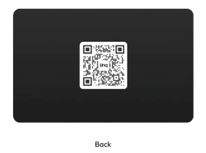
-
The QR generated from your Linq page
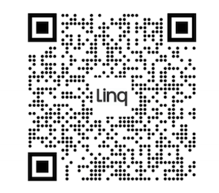
They both help people get to your page—but they’re used in different ways.
1. QR Code Printed on Your Linq Card
-
This QR is physically printed on your Linq card.
-
It’s a backup for the NFC chip in case someone:
-
Has an older phone that doesn’t support NFC, or
-
Has NFC turned off.
-
Once your card is activated and tied to a page:
-
Tapping the NFC chip or
-
Scanning the QR printed on the card
…both take people to the same Linq page.
Think of this QR as your on-the-spot, in-person backup when someone has trouble with tap.
2. QR Code from Your Linq Page
Each Linq page you create also has its own unique QR code.
This QR is designed for digital and flexible sharing, like:
-
Dropping into emails or text messages
-
Adding to slides, documents, or flyers
-
Printing on signs, posters, or custom swag
-
Downloading as a file to reuse wherever you need
It’s tied directly to that specific page, not just the physical card.
Do I Need to Put My Page’s QR on My Card?
No. You don’t need to add your page’s QR code to your physical card:
-
Your card already has its own QR printed on it.
-
That QR works as a backup to the NFC tap and is already linked to your activated page.
Instead, think of it this way:
-
Use the QR on the card for in-person interactions (tap or scan).
-
Use your page QR for digital sharing and custom printing (emails, marketing materials, screens, etc.).
Both exist so you’re covered everywhere you share, but you don’t need to manually combine them.