
How to Make Sure Your Linq Card Is Assigned to the Right Page or Account
If you have multiple pages or multiple accounts, you may need to reassign your physical card (or other product) to the correct page.
This guide covers:
-
How to assign your card to a different page on the same account
-
How to move your card to a different Linq account (different login)
Option 1: Assign Your Card to a Different Page on the Same Account
Use this if you’ve set up multiple pages under the same login, and just need to move the card to the right one.
-
Open the Products screen
-
In the Linq app, go to your Home screen.
-
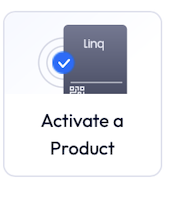
Tap the Activate a Product button at the top (next to the notification bell).
-
-
Select your product
-
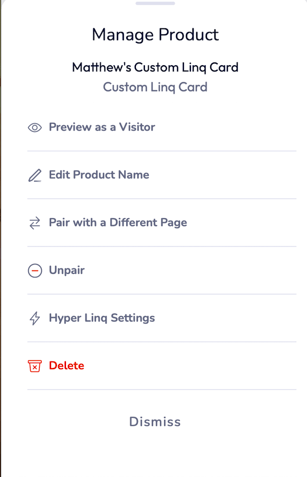
On the Products screen, find and tap the card or product you want to move.
-
-
Pair with a different page
-
Tap Pair with a Different Page.
-
Choose the new page you want this product assigned to.
-
Confirm your selection.
-
Your card/NFC product will now open the new page when scanned or tapped.
Option 2: Move Your Card to a Different Linq Account
Use this if the card needs to be used on another login (for example, you have a second account, or you’re transferring the card to someone else’s account).
🔐 Important: A product can only be active on one account at a time. You’ll need to delete it from the original account before activating it on a new one.
Step 1: Deactivate the Card from the Current Account
-
In the Linq app, go to your Home screen.
-
Tap the Activate a Product button at the top.
-
Select the product you want to move.
-
Tap Delete to remove it from this account.
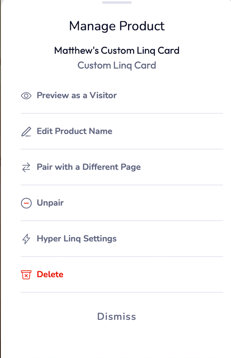
This frees the card so it can be activated under a new account.
Step 2: Log In to the New Account
-
From the Linq app, sign out of the current account.
-
Log in using the account you want this product on (new or different login).
Step 3: Activate the Card on the New Account
-
After logging into the new account, go to your Home screen.
-
Tap Activate a Product.
-
Follow the on-screen steps (scan the QR code or tap NFC, then assign to the correct page).
Once activation is complete, the card will now belong to the new account and will open the page you assigned there.