
How to Reorder Content on Your Linq Page
You can easily change the order of sections (Socials, Links, Photo Gallery, etc.) on your Linq page using the Sort tool.
Steps to Reorder Content
-
Open the Pages tab
-
In the Linq app, tap the Pages tab in the bottom navigation bar.

-
Make sure you’re on the page you want to edit.
-
-
Tap Sort
-
Tap the sort button

-
-
Open the Sort Content view
-
A screen labeled “Sort Content” will appear.
-
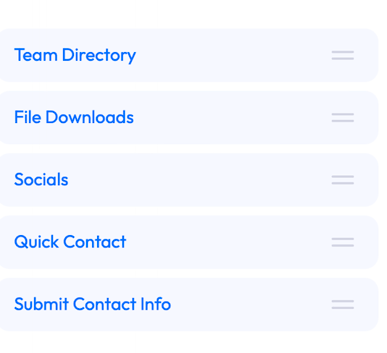
You’ll see a list of your content sections (e.g., “Dynamic Template,” “Socials,” “Links,” “Photos,” etc.).
-
Each item will have a drag handle (two horizontal lines) next to it.
-
-
Drag sections into the order you want
-
Press and hold the two lines next to a section.
-
Drag it up or down to move it into the desired position.
-
Repeat this for any other sections you want to reorder.
-
-
Save your changes
-
When you’re happy with the new order, tap Save.
-
Your Linq page will now display content in the updated order.
-