
How to Add Links to Your Linq Page
You can easily add links to your Linq page from the Linq app.
-
Open your Linq app
Tap the Pages tab.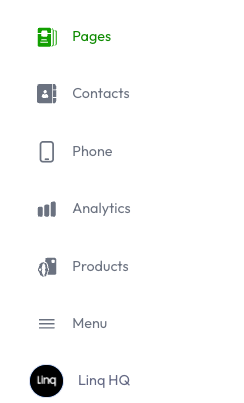
-
Choose where to add the link
Select the page you want to edit, then tap Add Content.
-
Add a Links section
Scroll down and tap the Links tile. This creates a new Links section on your page.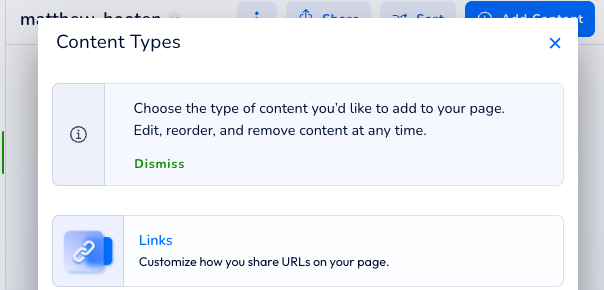
-
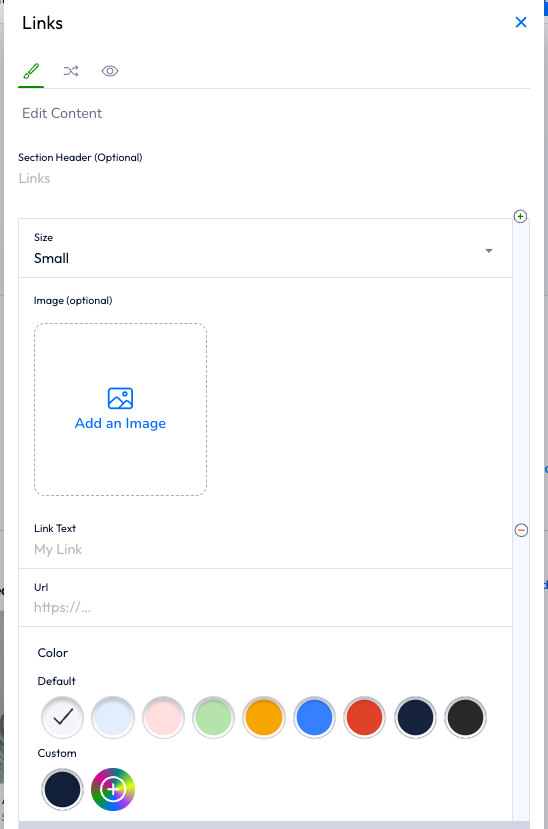
(Optional) Add a section header
At the top, you’ll see Section Header.-
Use this if you want to label this group of links (for example: “Social Media,” “Booking Links,” or “Resources”).
-
You can also leave it blank if you don’t need a title.
-
-
Add your link details & picture
In the Links editor you’ll see:-
Image area – Tap the picture/placeholder on the left to upload a photo or logo from your device. This image will show next to this link on your page.
-
Link Text – A short description of what the link is for (e.g., “Book a Call,” “Visit My Website,” “Instagram”).
-
URL – Paste or type the full website address you want visitors to go to.
-
-
Save your link
Once everything looks good, tap Save. Your new link section will now appear on your page. -
Add more links to the same section
If you want to group similar links under the same header, tap the green Add Link button at the bottom of the editor.-
Each additional link can have its own image, link text, and URL.

-
-
Create a separate Links section (optional)
If you want a different group of links (with its own header and layout), go back to Add Content and choose Links again.-
This creates a brand-new Links section so you can keep things organized (for example: one section for “Services” and another for “Social Media”).
-